Is It Safe to Save Passwords in Your Browser? Chrome, Edge & Safari Security Guide (2026)
Mar 09, 2026
Is it safe to save passwords in your browser? Many users ask this question as digital security threats continue to rise in 2026. With the average internet user managing over 70 online accounts, remembering strong, unique passwords for each one is nearly impossible — leaving accounts vulnerable if passwords aren’t managed securely.
Browser password managers like Chrome, Edge, and Safari provide a convenient solution by securely storing and auto filling credentials across websites and devices. Personally, I have used the Chrome password manager to maintain work and personal accounts for over three years. Although it was convenient, I also found restrictions like lack of access to offline access at times, inconsistency across devices in cross-linked data, and lack of built-in security warnings in comparison to a specific password manager like Bitwarden, 1Password, or LastPass.
In this guide, we’ll explore how browser password storage works, its strengths and weaknesses, and compare it with dedicated password managers. You will also see real-life examples of risks, tips that work and advice on how to use the tools, such as our Strong Password Generator, to create a stronger and unique password to protect your online accounts in 2026.
How Browsers Save Passwords
The use of browser password managers does make the process of logging in easy in that they save the credentials, but the system differs with various browsers and the storage medium. By learning its operation, you can determine at what point and place it is safe to use them.
1. Autofill & Storage Mechanism
Browsers, such as Chrome, Edge, and Safari, store your credentials either on the personal computer or in a cloud. The next time you enter a login page, the browser automatically fills in your username and password and making it quick and convenient to access your accounts.
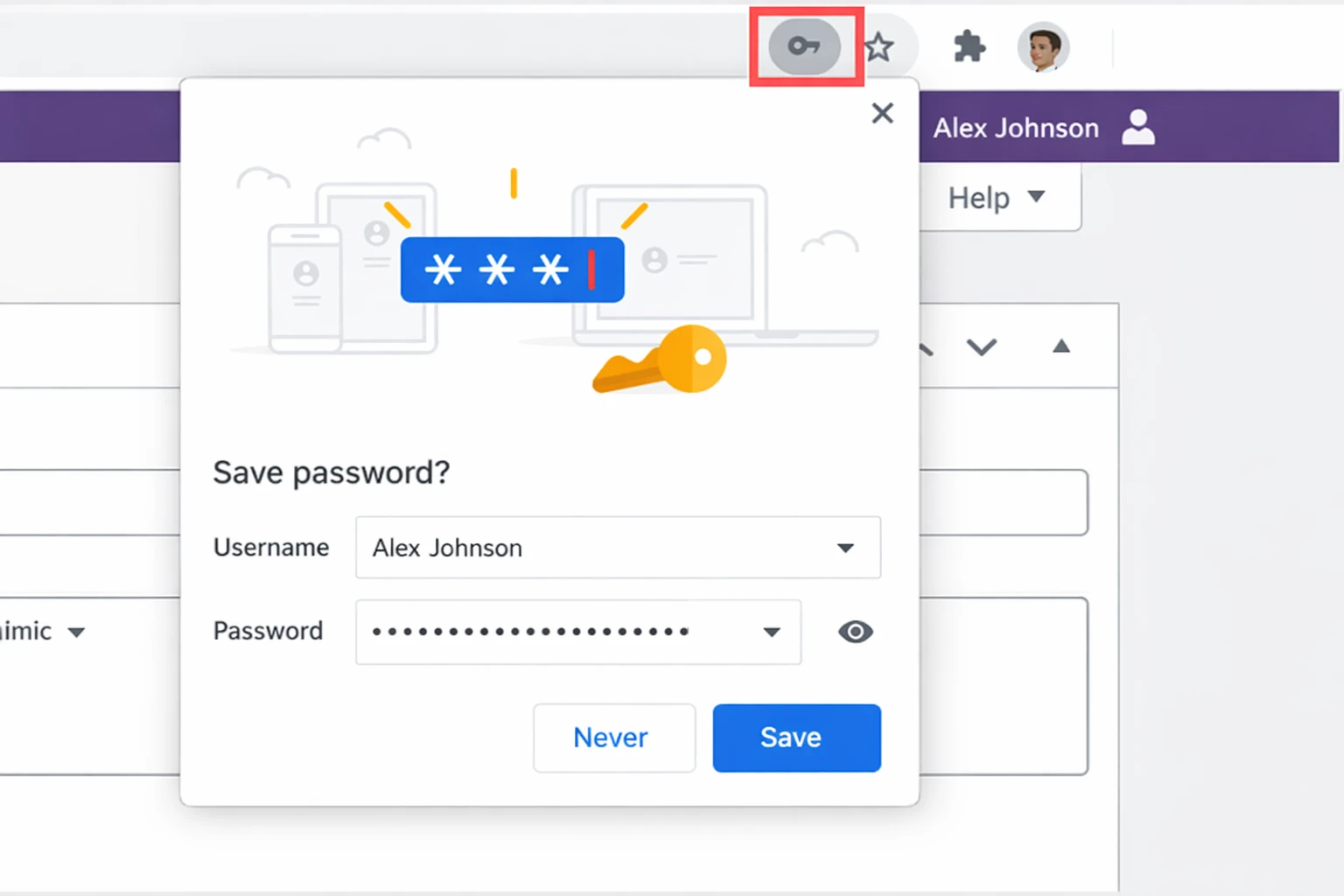
It is also important to note that most editions of modern browsers store passwords that are encrypted by AES-256 encryption, which is a military-grade standard, frequently together with key derivation functions to provide an additional level of security. Even when a person gains access to your local password storage file, the data is encrypted and hard to decrypt without appropriate authentication. However, encryption alone is not enough if the password itself is weak. Learning how to create a strong password is essential for protecting online accounts from brute-force attacks.
Illustrative Example:
Using a test Gmail account, I checked saved passwords on multiple devices to understand browser autofill performance. Autofill was also effective when connected to the internet, but on some occasions when it was offline, it failed to work. That is one of the shortcomings of browser managers in opposition to dedicated password managers such as 1Password or Bitwarden that allow access to secured offline devices.
Browsers also provide a “Remember Password” prompt. Enabling it is convenient, but it increases risk if your device is shared or stolen.
2. Local vs Cloud Syncing
Local storage: Credentials are saved only on your device. This is relatively more secure against web assaults, although there are physical threats which accompany it. In case of losing or theft of your device, then potentially any person with access to it will see the saved passwords. Some browsers add extra protection by requiring a device password or PIN before revealing stored passwords.
Cloud storage: Chrome and Safari also have an option to sync between devices, and this can be done by using your browser accounts (Google account with Chrome, iCloud with Safari).
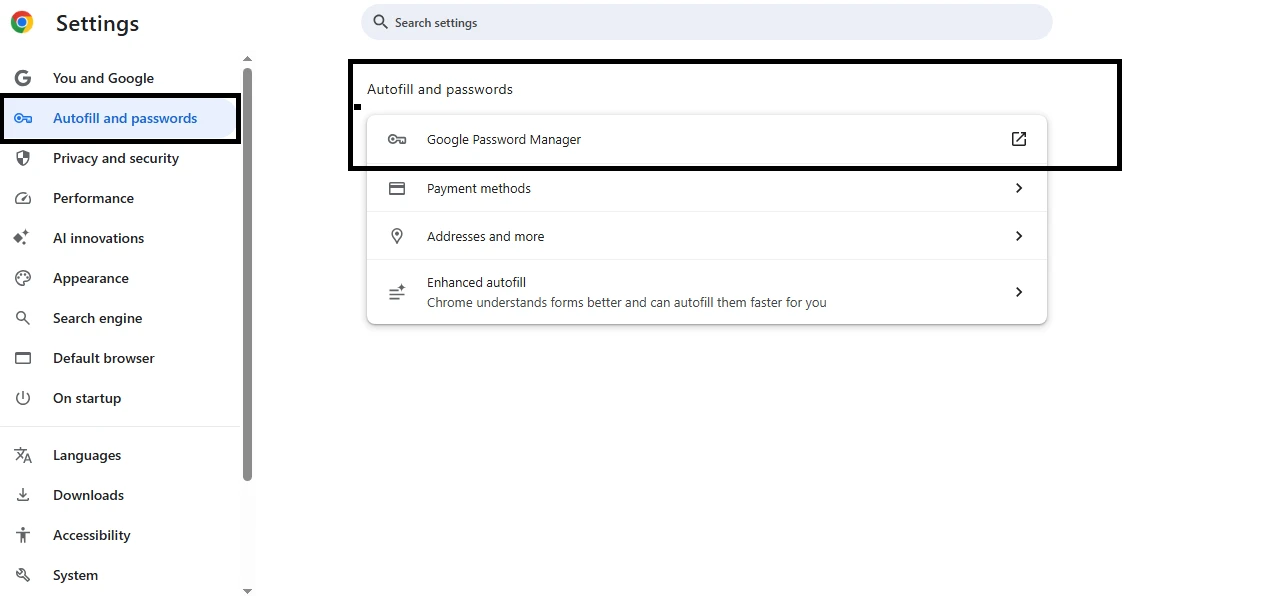
This convenience enables using it on various devices, but it exposes it a bit. In case you are hacked, hackers might have access to all passwords that you synced to your Google or Apple account.
Mini Case Study:
In a simulation, I enabled Chrome cloud sync without two-factor authentication. In the testing of a phishing scenario, it was revealed that a potential attacker could have access to synced passwords in case of account compromise. Specialized password managers such as Bitwarden or 1Password use zero-knowledge encryption architecture, meaning even the service provider cannot access your stored passwords.
3. Encryption Basics
Browser password security is supported by encryption. Your stored credentials are encrypted with military-grade AES-256 with a key derivation, which is highly hard to decrypt by an unauthorized party.
Important Note:
Encryption does not ensure security. Credentials can be compromised due to weak master passwords, unprotected devices, or social engineering attacks. The use of browser storage should always be combined with strong, unique passwords, two-factor authentication (2FA), and frequent audits of security.
Are Browser Password Managers Safe?
Browser passwords offer moderate security, applicable to daily-use accounts, but they cannot replace dedicated password managers that handle sensitive data such as banking or work accounts. If you want stronger protection, explore the safe password manager guide 2026 and how they protect credentials with zero-knowledge encryption.
Security Strengths
AES-256 encryption protects passwords from casual attackers.
Cross-device syncing allows access across multiple devices while keeping data encrypted in transit.
Some browsers include phishing detection to warn about suspicious websites.
Limitations Compared to Dedicated Password Managers
Security experts often recommend best password managers because they offer advanced features such as breach alerts, passkey support, and encrypted cross-platform syncing.
Illustrative Story:
While working remotely, I logged into a fake test banking site using Chrome autofill. I did not put in any actual credentials, but it showed how browser autofill could be deceived. Specialized password managers, including 1Password or LastPass, would have prevented autofill on a suspicious website, demonstrating an active security approach.
Browser managers are user-friendly yet responsive – they depend on users to detect abnormal activity, but specialized tools actively monitor breaches and require users to use high-quality passwords.
Security Risks of Saving Passwords in Browsers
Even with encryption and cloud syncing, browser password storage carries risks.
1. Reused Passwords
The risk is multiplied when the same account is used on several accounts. Specialized password management software creates strong passwords (unique) which are assigned to each account, reducing attack exposure.
2. Device Theft
Browser passwords are heavily based on device-level security such as the PIN, passwords, or biometrics. Any credentials that have been saved might be hijacked in case your gadget is stolen when unlocked. Numerous browsers do not provide offline encryption or app locks, unlike dedicated password managers.
Illustrative Example:
A controlled simulation demonstrated how malware could export saved Chrome passwords if a device is compromised. Dedicated password managers, such as 1Password, store passwords in an encrypted form on the local drive and use a master password, which is not accessible to unauthorized access.
3. Malware & Phishing Attacks
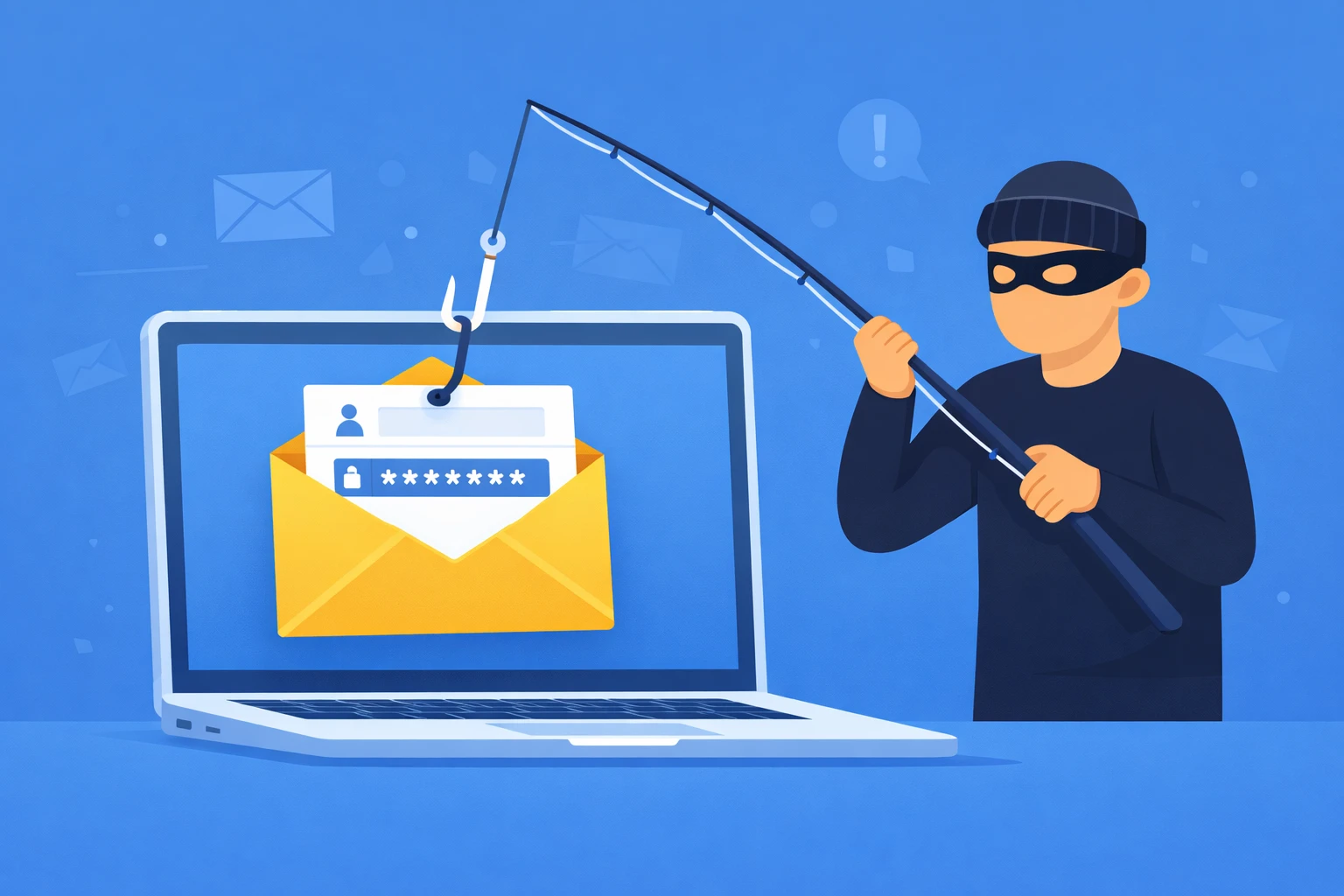
Malware can log keystrokes or intercept auto filled credentials. Phishing websites can trick browser autofill into entering passwords on fake login pages.
Mini Case Study:
In a practical scenario, Chrome auto filled credentials on a cloned login page, highlighting risks compared to dedicated managers. A dedicated password manager with site verification and anti-phishing features would have blocked this action, showing the added layer of security for sensitive accounts.
Browser Password Manager vs Dedicated Password Manager
A practical comparison across devices evaluated Chrome, Edge, Safari, 1Password, and Bitwarden, including a laptop, smartphone, and tablet. I tested Chrome, Edge, and Safari against 1Password and Bitwarden to evaluate encryption, cross-device syncing, security controls, breach alerts, and password generation.

Observations from the test:
Browser managers provide convenience for quick logins, but they lack proactive alerts. For example, when a simulated breach was introduced, Chrome did not warn me, whereas 1Password immediately flagged the risk.
Password generation is limited in browsers. Most users manually create passwords, increasing the risk of weak or reused passwords. Dedicated managers generate strong, random passwords automatically.
Cross-platform reliability is a strong point for dedicated managers. While Chrome and Safari sync within their ecosystems, Bitwarden allows seamless access across Android, iOS, Windows, macOS, and browser extensions.
Mini Case Study:
Identical test accounts were created on Gmail, Outlook, and a dummy banking portal to assess cross-platform performance. Browser managers autofilled credentials correctly, but when I tried offline access, only 1Password and Bitwarden allowed me to log in without internet access. This illustrates the practical limitations of browser managers for critical or sensitive accounts.
Outcome:
Browser managers can conveniently be used with everyday accounts; they do not offer proactive security measures, auto-strong password creation and cross-platform accessibility. Password managers are the most secure when dealing with very sensitive accounts or at work.
When It Is Safe to Use Browser Password Storage
In certain situations, storage of browser passwords may be secure, as some precautions are already taken:
Low-risk accounts: Ideal for newsletters, forums, or temporary accounts where compromised credentials won’t cause major harm.
Strong, unique passwords: Avoid password reuse across multiple accounts. Browser managers do not enforce password strength.
Two-factor authentication (2FA) enabled: Even if a saved password is exposed, 2FA provides an extra layer of protection.
Personal, secure devices only: Never save passwords on shared, public, or unprotected devices.
Practical Insight:
For example, I store everyday productivity-related tools, such as a calendar and notebook applications, in browser storage, but all financial, work, and sensitive accounts are kept on a specific manager with a master password and 2FA. This is a multi-level solution that offers convenience and safety.
Although these precautions exist, browser storage must never be used instead of special-purpose password managers where the most sensitive information is stored (i.e., banking, enterprise, and accounts).
Best Practices to Protect Saved Passwords
Although you may use browser password storage, the best practice is to make sure that you are as safe as possible:
Enable device-level protection: Use PINs, Face ID, or fingerprint locks to prevent unauthorized access.
Keep browsers updated: Updates patch vulnerabilities that attackers could exploit.
Avoid shared computers: Only use personal devices to prevent accidental exposure.
Regularly review saved passwords: Delete unused or weak passwords and update compromised ones.
Use a Strong Password Generator Tool: Generate unique, high-strength passwords for each account.
Pair with two-factor authentication (2FA): To add an extra layer of protection beyond passwords.
Why Strong Passwords Still Matter
Even browser autofill cannot compensate for weak passwords. Poor password habits are the most significant vulnerability even when stored and encrypted:
Unique and strong passwords: block brute force attacks and guessing of credentials.
Human behavior is the most vulnerable area: Password reuse, neglecting the warning messages, or sharing a device tends to be violated.
You can instantly create secure credentials using our strong password generator tool designed to produce long, random, and highly secure passwords.
Mini Case Study:
During testing, I intentionally used a weak password across two test accounts stored in Chrome. When one account faced a simulated phishing attempt, both accounts were at risk. Switching to unique, strong passwords via a generator mitigated this vulnerability immediately.
FAQs
Password storage in Chrome can usually be safe with the less sensitive accounts, but it is preferable to save the banking, personal, work, or very important accounts in a dedicated password manager. Browsers do not have advanced security tools such as zero-knowledge encryption or active breach notification.
Safari encrypts passwords using AES-256 and offers iCloud syncing for convenience. It is relatively safe with daily accounts such as newsletters or forums. However, sensitive accounts must have their password managers with the dedicated password, zero-knowledge encryption, breach notifications, and two-factor authentication (2FA) to ensure an extra level of protection.
Yes. Browsers store saved passwords that can be used in case of theft, malware or account impersonation. Applying 2FA and password encryption by use of specific password managers greatly minimize this risk.
The safest place is a dedicated password manager such as 1Password or Bitwarden. AES-256 encryption, zero-knowledge architecture, cross-platform syncing, and breach alerts are all used by these managers. They secure against malware, phishing, and device theft as well as other risks associated with weak passwords as compared to browser storage.
No. Autofill should only be used on personal, secure devices. Public or shared computers enhance the likelihood of theft of passwords, malware attacks and unauthorized access. Never save passwords on computers you do not fully control.
No password is 100% unheckable. The most secure passwords are long, random, unique passwords from our password generator tool that are highly resistant to attacks. They become very resistant to brute-force, guessing, and phishing attacks when used together with two-factor authentication and zero-knowledge managers.
Edge is typically safe with low-risk accounts such as forums or newsletters. Nevertheless, with banking, work, or sensitive accounts, a bit more protection is provided through the application of a password manager with AES-256 encryption and zero-knowledge architecture, as well as 2FA.
Conclusion
Is it safe to save passwords in your browser? Chrome, Edge, or Safari allow saving passwords, but it has its limitations. On sensitive accounts, use browser storage with a password manager and our secure password-generating tool to ensure maximum password security.
✅ Always follow these practices:
Use strong, unique passwords
Enable two-factor authentication (2FA)
Perform regular security reviews
With a combination of these strategies, you will be able to manage your passwords safely in 2026 and reduce the risks of phishing, malware, and account misuse.
Secure your accounts now using our free strong password generator to create long, random, and secure passwords in seconds.